

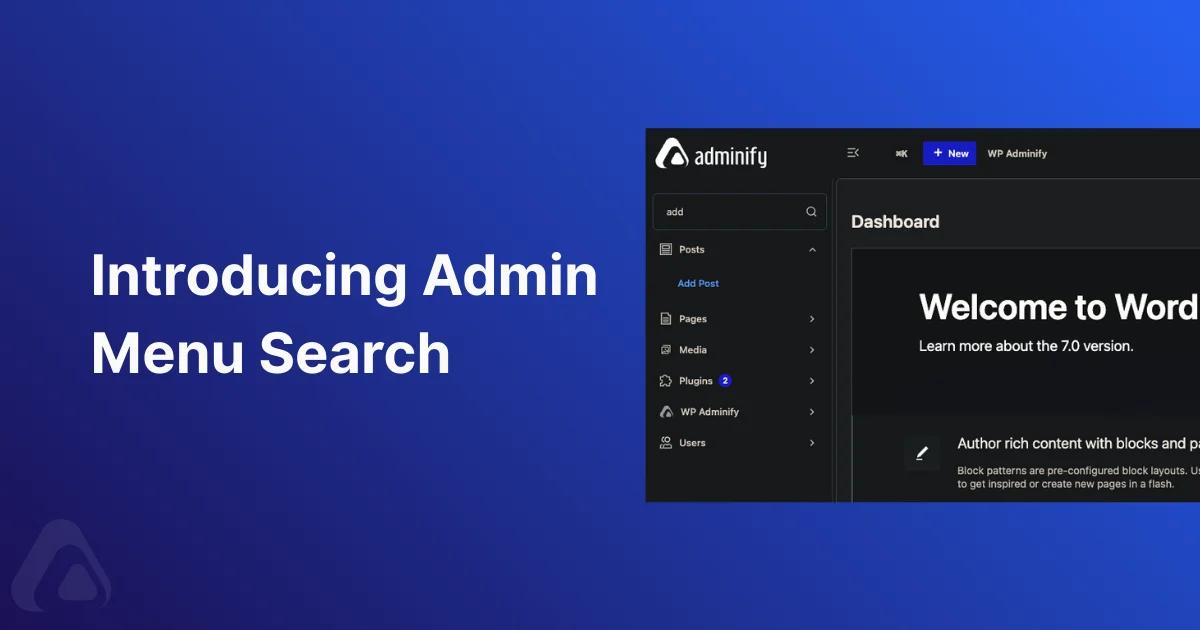

If you manage a serious WordPress site, you know the feeling: the admin sidebar keeps growing with every plugin, and a simple task turns into scrolling up and down to find the right menu item. WP Adminify already helps you organize and customize that dashboard, but we wanted to go one step further and make navigation instant.
That is why we built the new Admin Menu Search feature in WP Adminify – a smart search bar that lives on top of your admin menu and lets you jump to any menu or submenu item just by typing a few letters.
check this menu search in action
The Story: A Feature Inspired by Our Pro User, Felix Cuceanu
This feature started with a conversation, not a roadmap document. One of our Pro users, Felix Cuceanu, reached out and shared how much he relies on WP Adminify every day to manage his WordPress sites. He explained that while the Admin Menu Editor and other productivity modules already save him time, finding specific menu items inside a long sidebar was still slowing him down.
After talking with Felix and understanding his workflow, it became clear that a fast, keyboard‑friendly way to locate any admin menu item would be a huge win for power users and agencies. His feedback directly shaped the Admin Menu Search feature, from the placement of the search bar to the way results are filtered in real time.
We are always happy to hear both positive and negative feedback from our users, and Felix’s suggestions are a perfect example of how real‑world usage guides our product decisions.
What Admin Menu Search Does?
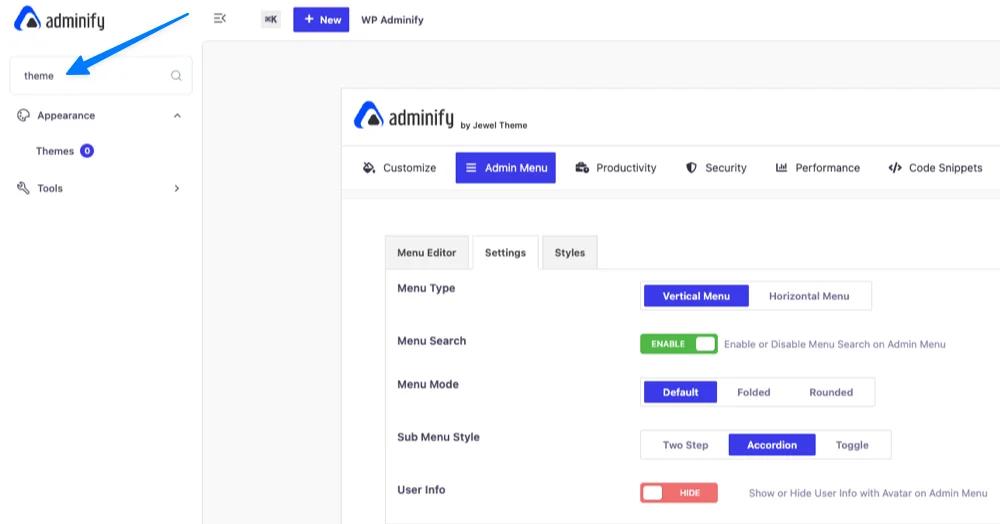
Admin Menu Search adds a simple text search field at the very top of your WordPress admin menu. As you type, it instantly filters visible menu and submenu items to match your query, so you can open exactly what you need with a single click.
It works with core WordPress menus, plugin menus, and any custom items, so you always get consistent results no matter how complex your dashboard is.
How This Helps You Work Faster
Admin Menu Search is designed to remove small but constant friction in your daily workflow. Here are a few practical ways it helps:
- Find hidden plugin pages in seconds: When you install several plugins, each one adds at least one menu item and often multiple submenus. With Admin Menu Search, you can type “SEO”, “Woo”, “Forms”, or any keyword and immediately see only the relevant items.
- Reduce onboarding time for teams and clients: If you build sites for clients or work in a team, people often do not remember where settings live. A visible search bar on the dashboard sidebar makes it much easier for non‑technical users to discover where they need to go without asking you every time.
- Combine with role‑based menus for a cleaner experience: WP Adminify already lets you reorganize the admin menu, hide items by user role, and create custom menus. When you pair that with Admin Menu Search, users see only what they are allowed to access and can still find those items instantly.
- Fewer clicks, more focus: Instead of scrolling, expanding, collapsing, and hunting for the right submenu, you stay focused on your task: type, press Enter or click, and get back to work. This kind of micro‑efficiency adds up when you are inside the dashboard all day.
How to Enable Admin Menu Search in WP Adminify
Turning on Admin Menu Search is straightforward and takes just a few seconds:
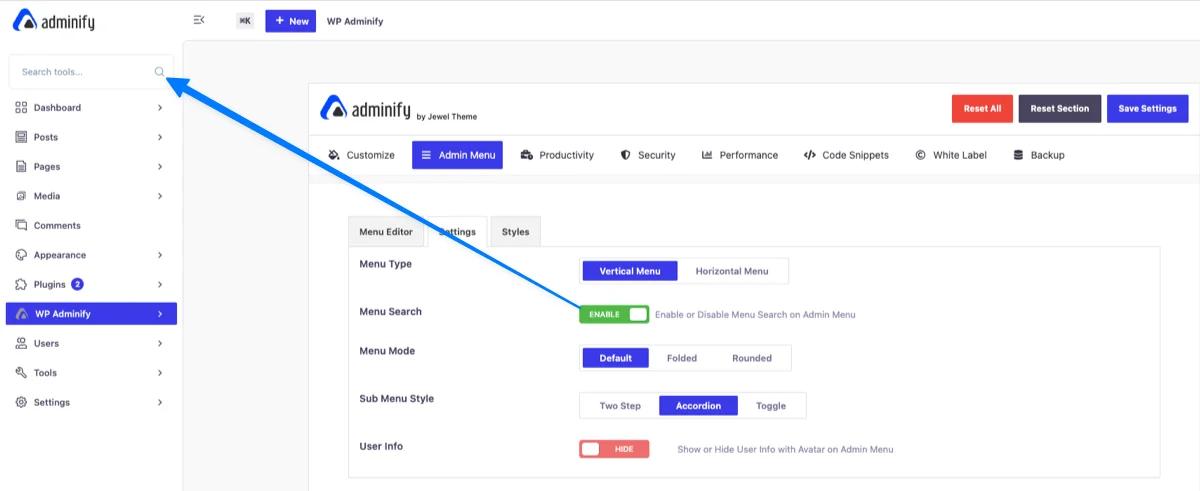
- Go to your WordPress dashboard and navigate to WP Adminify → Admin Menu.
- Open the Settings tab inside the Admin Menu panel.
- Locate the Menu Search option and toggle it to Enable.
- Save your settings and reload the dashboard. You will now see a search bar at the top of your admin sidebar.
Because WP Adminify is modular, you can keep this feature enabled while turning off any modules you do not need, so your site stays lightweight and tailored to your workflow.
Built on a Modular, Productivity‑Focused Toolkit
Admin Menu Search joins a growing collection of productivity features in WP Adminify: Admin Menu Editor, white labeling, dark mode, admin columns, dashboard widgets, media folders, activity logs, and more.
All of these modules share one goal: help you turn the default WordPress admin into a clean, branded, and efficient workspace that matches how you actually work. You choose which modules to enable, so WP Adminify grows with your projects instead of getting in the way.
Listening to Users: Why Feedback Like Felix’s Matters
Admin Menu Search exists because a real user took the time to share his experience with us. Conversations like the one we had with Felix Cuceanu help us see WP Adminify through our users eyes and prioritize what actually moves the needle for them.
We regularly talk with both free and Pro users, and we genuinely welcome every kind of feedback – feature ideas, pain points, and even criticism. This feedback cycle is how WP Adminify has grown into a flexible toolkit used by agencies, freelancers, and product teams around the world.
If you have an idea that would make your WordPress dashboard faster, clearer, or more enjoyable, we would love to hear from you. Your next suggestion might become the next feature we ship.
Try Admin Menu Search on Your Site
If you are already using WP Adminify, update to the latest version and enable Admin Menu Search from the Admin Menu settings to see how much time it can save you this week.
If you are new to WP Adminify, you can start with the free version and then unlock Pro features as you grow. Either way, we built this new feature to help you get more done in less time inside the WordPress dashboard.
Would you like me to also turn this into a shorter version that fits nicely as a changelog entry or product update inside your site?


Your email address will not be published