

Google Pagespeed Insights
How to Track Page Speed & History with Google PageSpeed?


Table of Contents
Google PageSpeed Insights addon lets you track page speed and history of any website. Let’s see how to do that.
How to Analyze Page Speed Data?
First, you need to open the Speed Insights panel. Go to WP Adminify > Pagespeed Insights to open the main interface. Here you can run speed tests. Paste your URL in the dedicated field. Now, to run a page speed test, click the “Submit” button.

Note: You can analyze external URLs too.
How to See Speed Insights Analytics?
After the speed test ends, you’ll see a detailed performance report including:
- Performance Score
- Improvement Suggestions
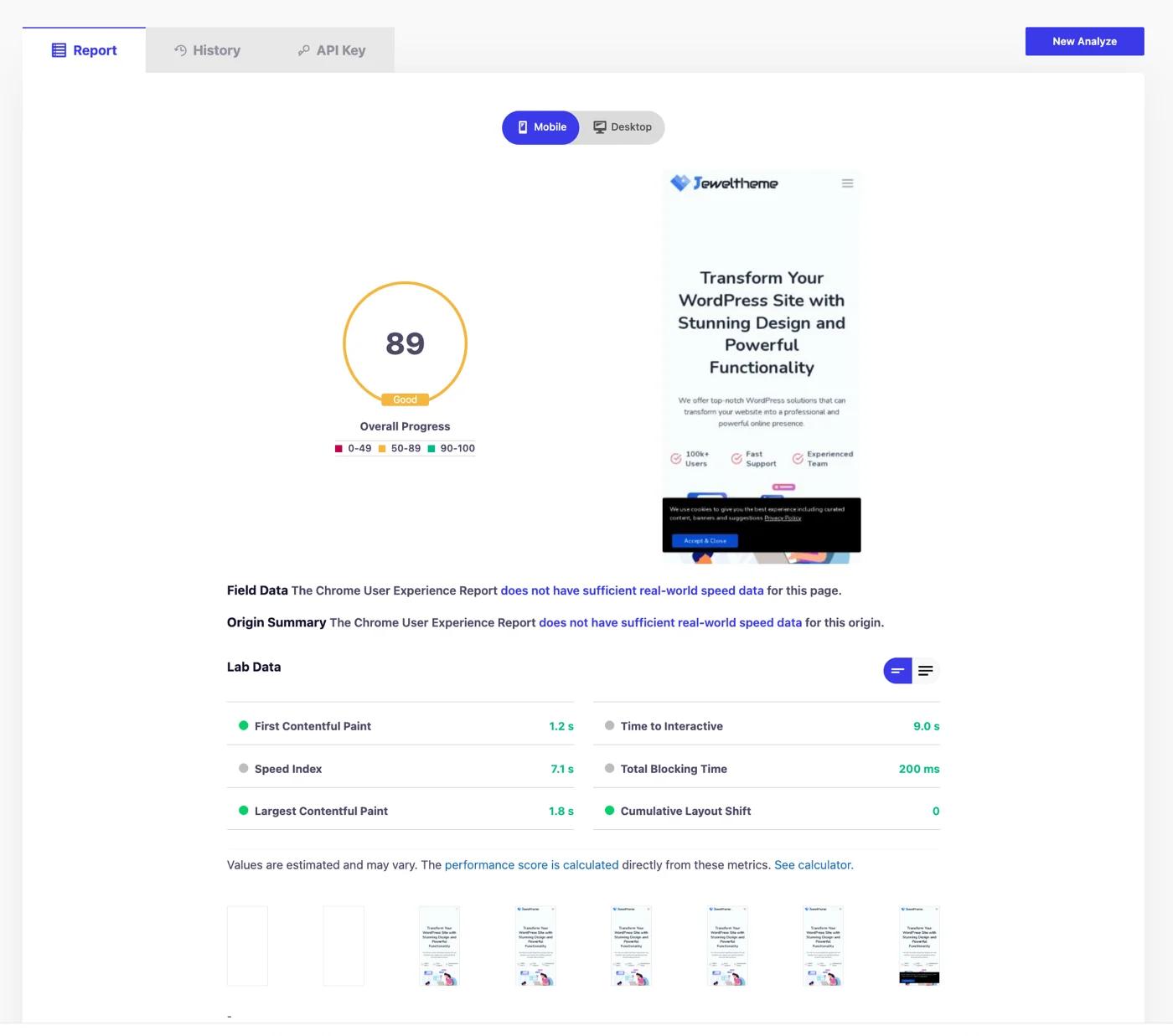
This will help you to identify what measures you can take to improve your page speed.
Check Pagespeed history
Now, if you want to check histories, open the “History” tab to see and review past speed test results. You'll see a list of URLs previously analyzed with timestamps and performance scores.
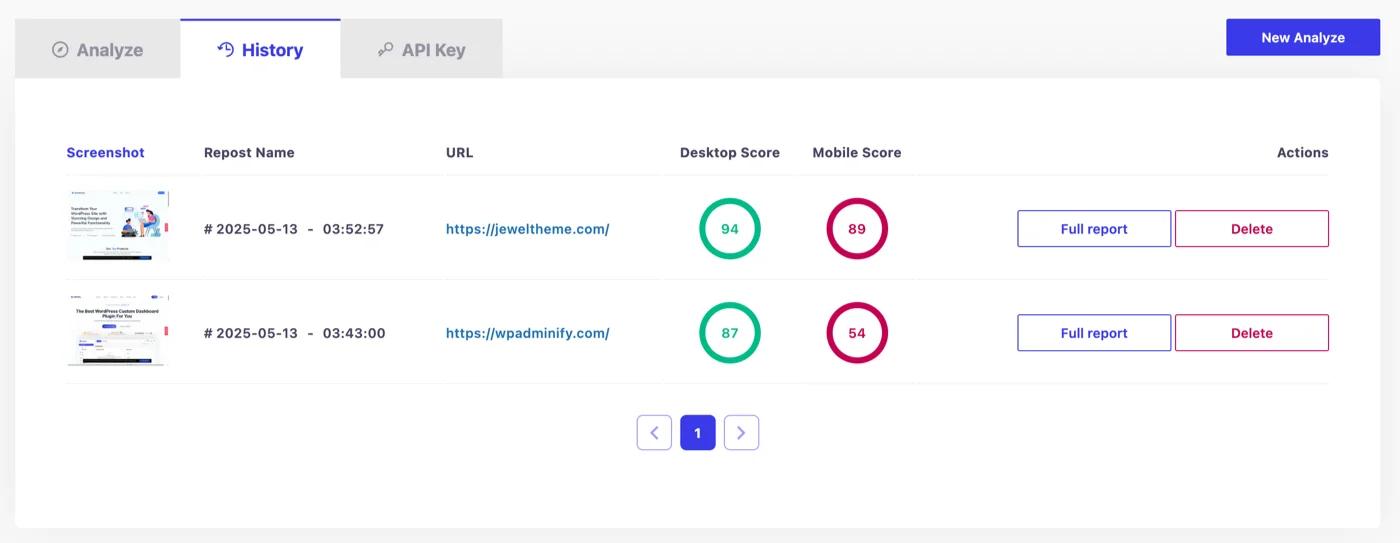
You can also delete your old entries. Simply click the “Delete” button beside the record to delete the data instantly.
PageSpeed History FAQs
Do I need a Google API key to track page speed?
Yes - the addon queries Google's PageSpeed Insights API, which requires a free API key. Setting one up takes a few minutes: follow the API key configuration guide.
Where does the speed data come from?
Directly from Google PageSpeed Insights - the same scores you'd get at pagespeed.web.dev, but stored inside your dashboard so you can compare reports over time and see whether changes helped.
Can I test any page of my site?
Yes. Open WP Adminify → Pagespeed Insights and run a report for any URL - each report is saved to its page's history.
Related Documentation
Didn’t find what you were looking for? Get in touch!
Updated on Aug 12, 2026
Was this helpful to you?