

Google Pagespeed Insights
How to create an API Key?


Table of Contents
The Google Pagespeed Insights tool analyzes the loading speed and performance of your website, offering recommendations to enhance site efficiency. It helps to improve response times, reduce download sizes, minimize resource requests, and ultimately boost your website's performance. This feature is essential for both user experience and SEO.
To integrate this tool with WP Adminify, you’ll need to create a Google Pagespeed Insights API key. Here's how you can generate and configure the API key to get started.
Step-by-Step Guide to Create a Google PageSpeed Insights API Key:
How Do You Get a Google PageSpeed Insights API Key?
To get a Google PageSpeed Insights API key, sign in to your Google account, open the PageSpeed Insights API page, click Get a Key, select or create a project, then copy the generated key and paste it into WP Adminify > Google PageSpeed. The key is free (Google allows 25,000 queries per day at no cost) and setup takes about three minutes. Follow the numbered steps below to create and connect your key.
Once connected, the Google PageSpeed Insights module runs automatic speed reports inside your WordPress dashboard, so you can track your PageSpeed history over time without leaving wp-admin.
1. Ensure You Are Logged into Your Google Account:
- Before you begin, ensure that you’re logged into your Google Account in your browser. If you don’t have one, you’ll need to create an account.
2. Access the Google Pagespeed Insights Documentation:
- Visit the official Google Pagespeed Insights API documentation by following this link. This page provides detailed instructions on how to use the API.
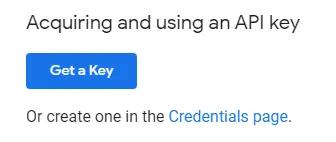
3. Click “Get a Key”:
- Scroll down the page until you see the “Get a Key” button.
- Click this button and wait a few moments for a popup window to appear.

4. Select or Create a Project:
- In the popup, you’ll see an option to either select an existing project or create a new project.
- If you want to create a new project specifically for PageSpeed Insights, click on “+ Create a new project”.
- If you want to enable Pagespeed API on an existing project, simply choose the project from the dropdown list.
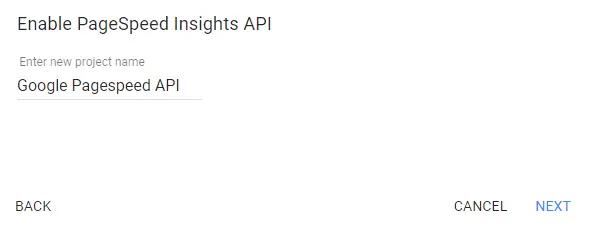
5. Create Your API Key:
- Whether you’ve chosen to create a new project or use an existing one, the next step is to click Next.
- Google will generate your API key in a few seconds. Once it's ready, copy the API key that appears on the screen.
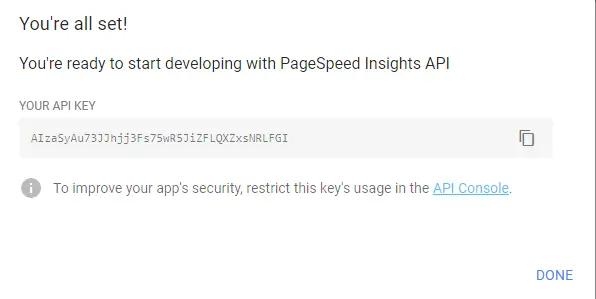
6. Set the API Key in WP Adminify:
- Log in to your WordPress dashboard and navigate to WP Adminify settings.
- Go to WP Adminify > Google Pagespeed within the WP Adminify dashboard menu.
- Paste the API key you just generated into the API Key input field.
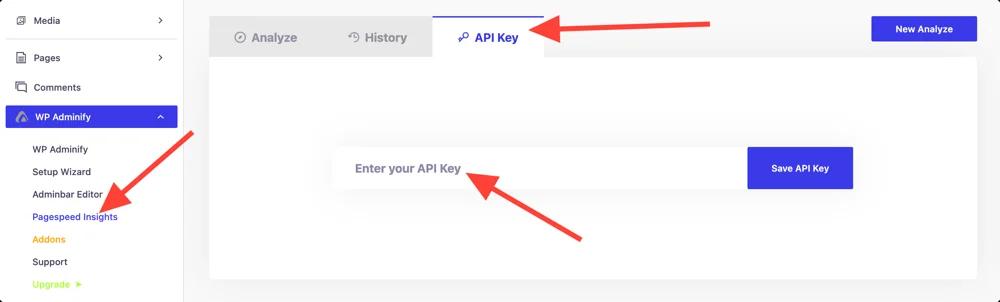
7. Save Your Settings:
- After pasting your API key, make sure to click Save Settings to apply the changes.
You’re now ready to start using the Google Pagespeed Insights module within WP Adminify.
How Do You Use Your PageSpeed Insights API Key?
Add the key to the request as a key query parameter. Google states the API key is safe for embedding in URLs and needs no encoding, so one GET request to the runPagespeed endpoint is all it takes. The response is a single JSON object holding both the Lighthouse lab report and the real world field data for that page. WP Adminify makes this call for you on a schedule, so most WordPress users never touch the raw API.
The request
From a terminal, the command Google publishes is curl https://www.googleapis.com/pagespeedonline/v5/runPagespeed?url=https://web.dev/&key=yourAPIKey. Swap in the page you want to audit and your own key. Two optional parameters do most of the work: strategy takes either mobile or desktop, and category selects which Lighthouse categories run, from performance, accessibility, seo, best-practices and pwa. Repeat the category parameter to request more than one in a single query.
What comes back
The JSON splits into two halves. lighthouseResult is the lab data: categories.performance.score is the performance score as a value between 0 and 1, and audits holds every individual check with its own score and a readable displayValue, so reading audits.largest-contentful-paint.displayValue gives you the LCP figure directly. loadingExperience is the field data for that URL, drawn from the Chrome User Experience Report. Automating a report usually means pulling three or four metric values out of audits and writing them to a row, not parsing the whole object.
Field data in this API is being retired
Google has announced it plans to discontinue Chrome User Experience Report data inside the PageSpeed Insights API and recommends the dedicated CrUX API or the CrUX History API instead. The Lighthouse lab data is unaffected. If you are building your own monitoring on top of the API, read field metrics from the CrUX API rather than from loadingExperience, so the reports keep working after the change lands.
If you would rather not maintain any of this, the Google PageSpeed Insights module runs the same requests from inside WordPress and stores each result, which is what turns a one off number into a page speed history you can compare week to week.
Where Do You Find Your PageSpeed Insights API Key Again?
Your key lives in the Google Cloud Console under APIs and Services, then Credentials, at console.cloud.google.com/apis/credentials. Open the project you created it in, and the key appears under API Keys with options to show, copy, edit or delete it. If the list looks empty, check the project picker at the top of the page first, because a key created in one Google Cloud project is invisible from any other.
You can also create a replacement key from that same Credentials page without going back through the Get a Key flow. Deleting the old key takes effect immediately, so paste the new one into WP Adminify > Google PageSpeed and save before the next scheduled report runs, or the module will log a failed request instead of a score.
Where is the official Google PageSpeed Insights API documentation?
Google publishes the official reference at developers.google.com/speed/docs/insights/v5/get-started, and that page is the authoritative source for the API surface and the response format. This guide covers the part those docs leave out: getting the key connected to a WordPress site so the reports keep running on their own.
What is the runPagespeed API endpoint?
The v5 endpoint is https://www.googleapis.com/pagespeedonline/v5/runPagespeed. Pass the page you want to test as the url parameter, your key as key, and set strategy to either mobile or desktop. Google notes the API "can be used with or without an API key", but recommends one for frequent automated queries, which is exactly what a scheduled report does.
Should you restrict your PageSpeed Insights API key?
Yes. An unrestricted key works for anyone who finds it, and someone else's traffic burns your daily quota. Open Credentials in Google Cloud Console, click your key, and under API restrictions limit it to the PageSpeed Insights API only. Leave the application restrictions alone if the requests come from your server, because a server-side call sends no referrer for Google to match against.
Can you use the PageSpeed Insights API with Google Sheets?
Yes. In Sheets open Extensions, then Apps Script, and use UrlFetchApp to call the runPagespeed endpoint and write the Lighthouse performance score straight into a cell. That works well for a one-off audit of a URL list. The tradeoff for ongoing monitoring is maintenance, since the script needs attention whenever the sheet or your quota changes, whereas the Google PageSpeed Insights module keeps the history inside wp-admin without a script to babysit.
Google PageSpeed Insights API FAQs
Is the Google PageSpeed Insights API free?
Yes. The Google PageSpeed Insights API is completely free. Google grants a default quota of 25,000 queries per day (up to 400 queries per 100 seconds), and you do not need to enter billing details or a credit card to generate a key.
Do you need an API key to use PageSpeed Insights?
You can run occasional manual checks without a key, but an API key is required for frequent or automated requests. WP Adminify's scheduled speed reports and history tracking make repeated API calls, so you should add a free PageSpeed Insights API key for the module to work reliably.
How long does it take to create a PageSpeed Insights API key?
About three minutes. Sign in to Google, open the PageSpeed Insights API page, click Get a Key, pick or create a project, then copy the generated key. Paste it into WP Adminify then Google PageSpeed and save your settings to finish.
Why is my PageSpeed Insights API key not working in WP Adminify?
The most common causes are an extra space added when pasting the key, the PageSpeed Insights API not being enabled for that Google Cloud project, or hitting the daily quota. Re-copy the key, confirm the API is enabled in the same project, then save your settings again.
How do I find my PageSpeed Insights API key?
Open the Google Cloud Console, go to APIs and Services then Credentials, and select the project you created the key in. The key is listed under API Keys, where you can reveal and copy it. If nothing is listed, switch projects using the picker at the top of the page, since keys are only visible inside the project that issued them.
Can I get a Google API key for free?
Yes. A PageSpeed Insights key is issued from a Google Cloud project with no billing account attached, so no card is required and nothing is charged. The confusion comes from other Google APIs in the same console that do require billing. Enable only the PageSpeed Insights API on that project and you stay inside the free daily quota.
Didn’t find what you were looking for? Get in touch!
Updated on Sep 1, 2026
Was this helpful to you?