


WP Adminify
Setup Wizard after Plugin Installation


Table of Contents
Welcome to WP Adminify! This guide will walk you through the quick and easy setup process to enhance your WordPress admin experience.
Step 1: Welcome Screen Upon activating WP Adminify
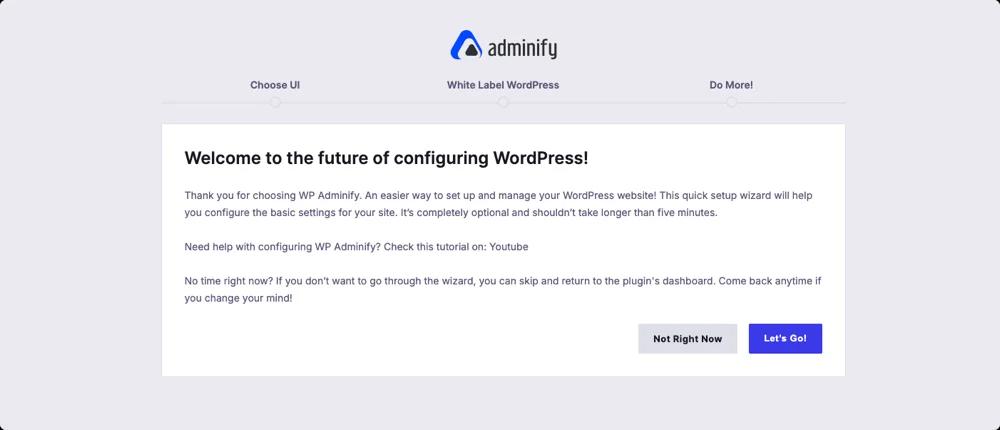
- The setup wizard helps configure basic settings for your site
- It should take about five minutes to complete
- You can watch a tutorial video on YouTube for additional guidance
- Choose "Let's Go!" to start the wizard, or "Not Right Now" to skip and return later
Step 2: Choose Your UI
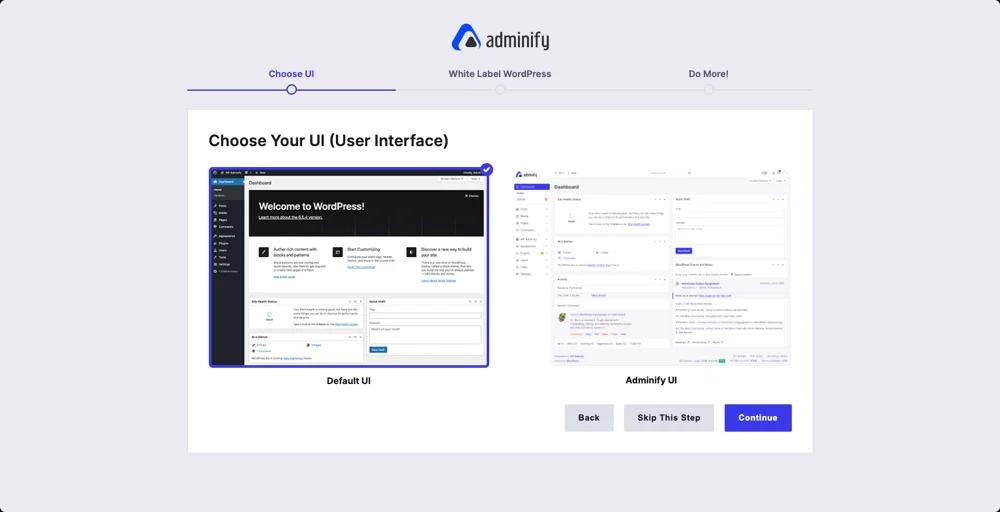
- Default UI: The classic WordPress admin look.
- If you pick the default UI, you’ll see the admin footer text customization option.
- Adminify UI: A modern, streamlined interface. Select your preferred option and click "Continue", or use "Skip This Step" to keep the default.
- If you pick the Adminify UI, you’ll see the option to add your logo
Step 3: White Label WordPress (Footer Credit) (Default UI):
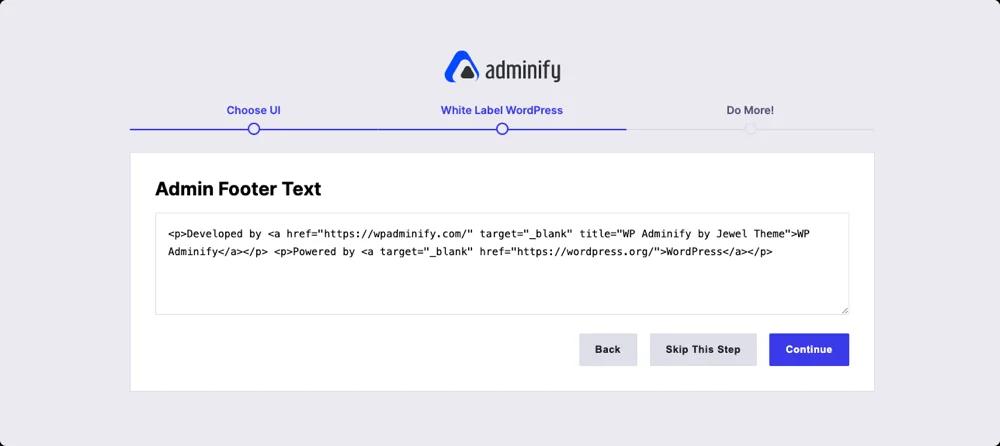
- Edit the HTML in the text box to customize the admin footer text
- You can include links and basic formatting
- Click "Continue" when done, or "Skip This Step" to keep the default footer
Step 4: Add Your Logo (Adminify UI)
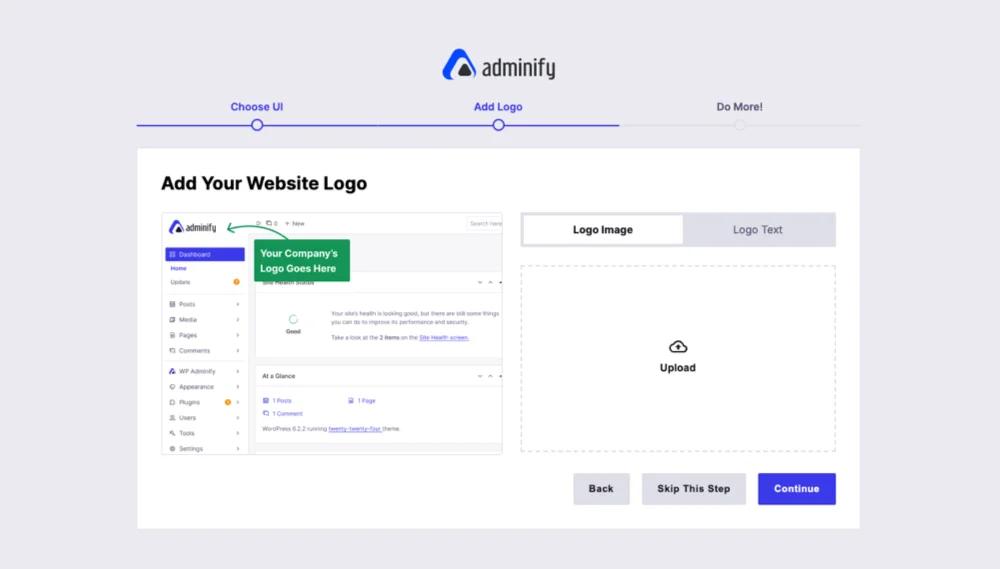
- Upload your logo as an image
- Or you can input a text logo
- Click "Continue" when done, or "Skip This Step" if you want to upload your logo later
Step 5: Explore More Features
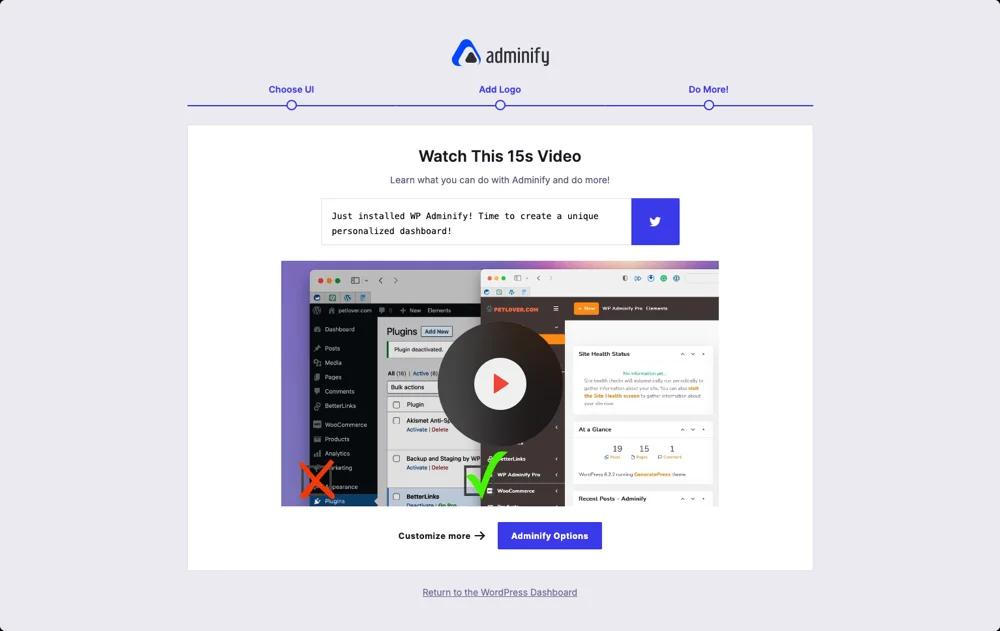
- Watch a quick video showcasing additional Adminify features
- Share your experience on Twitter using the provided text box
- Click "Adminify Options" to dive deeper into customization
- Or, return to your WordPress Dashboard to start using your newly configured admin area
Remember, you can always revisit these settings later through the Adminify menu in your WordPress admin panel.
Enjoy your enhanced WordPress experience with WP Adminify!
WP Adminify Setup Wizard FAQs
How long does the setup wizard take?
About five minutes. It walks you through the basic settings for your site right after you activate WP Adminify.
Do I have to complete the wizard to use the plugin?
No - everything the wizard configures is also available afterwards in the WP Adminify option panel, so you can change any choice later or configure the plugin entirely from the settings screens.
Does the wizard run for the Pro version too?
The wizard appears on activation of the plugin. If you're upgrading from free to Pro on the same site, your existing settings carry over - see the Pro installation guide.
Related Documentation
Didn’t find what you were looking for? Get in touch!
Updated on Aug 12, 2026
Was this helpful to you?