

WP Adminify
How to Reorder Post Types in WordPress?


Table of Contents
Follow these steps to reorder posts, pages, or any custom post type using WP Adminify. You can also enable/disable sortable media files on list view. And furthermore, you can select for sortable taxonomies
Step 1: How to Access Post Types Order Settings
First, go to the following path: WP Adminify > Productivity.
Now, enable the “Post Types Order” option on. This will reveal the options to reorder post types.
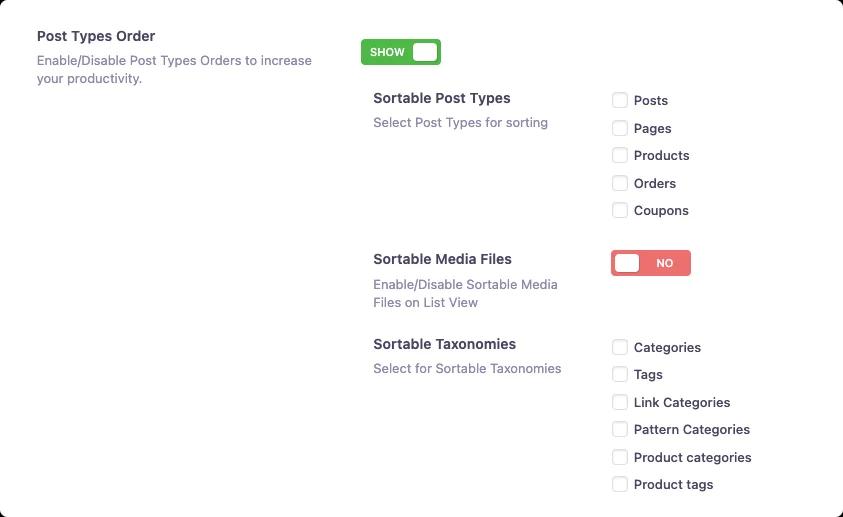
Step 2: How to Select Sortable Post Types
Look for the section labeled “Sortable Post Types”. You can select options from the following post types:
- Posts
- Pages
After enabling it, don’t forget to hit the “Save Settings” button.
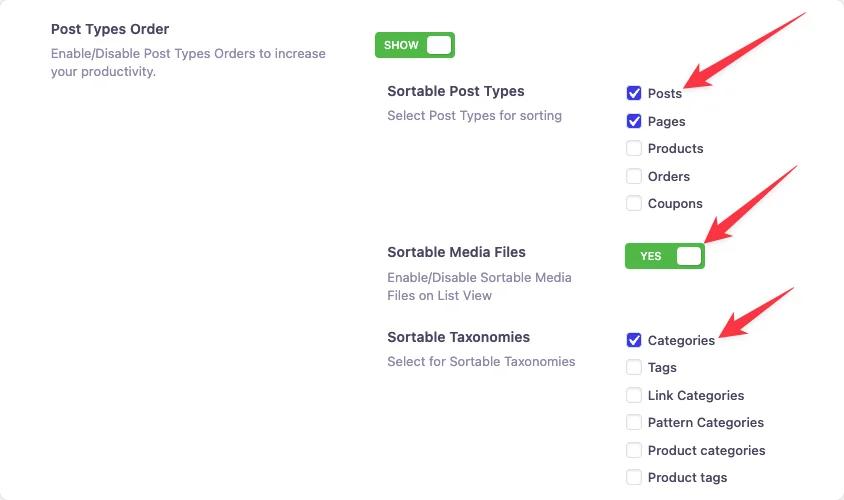
Now, go to the post type section you want to reorder. You’ll see a list view option, where you can easily drag and drop to sort your desired posts, pages etc,.
Step 3: How to Enable Sortable Media Files
You can enable sortable media files on the list view with a single click. Enable the “Sortable Media Files” button to enable it. And, to disable it, turn off the button.
After enabling it, click on list view in the media library. Here you can drag and drop any media item to rearrange it.
Step 4: How to Reorder Taxonomies
In the section labeled “Sortable Post Types” > “Sortable Taxonomies”. You can select options from the following taxonomies:
- Categories
- Tags
After enabling it, don’t forget to hit the “Save Settings” button.
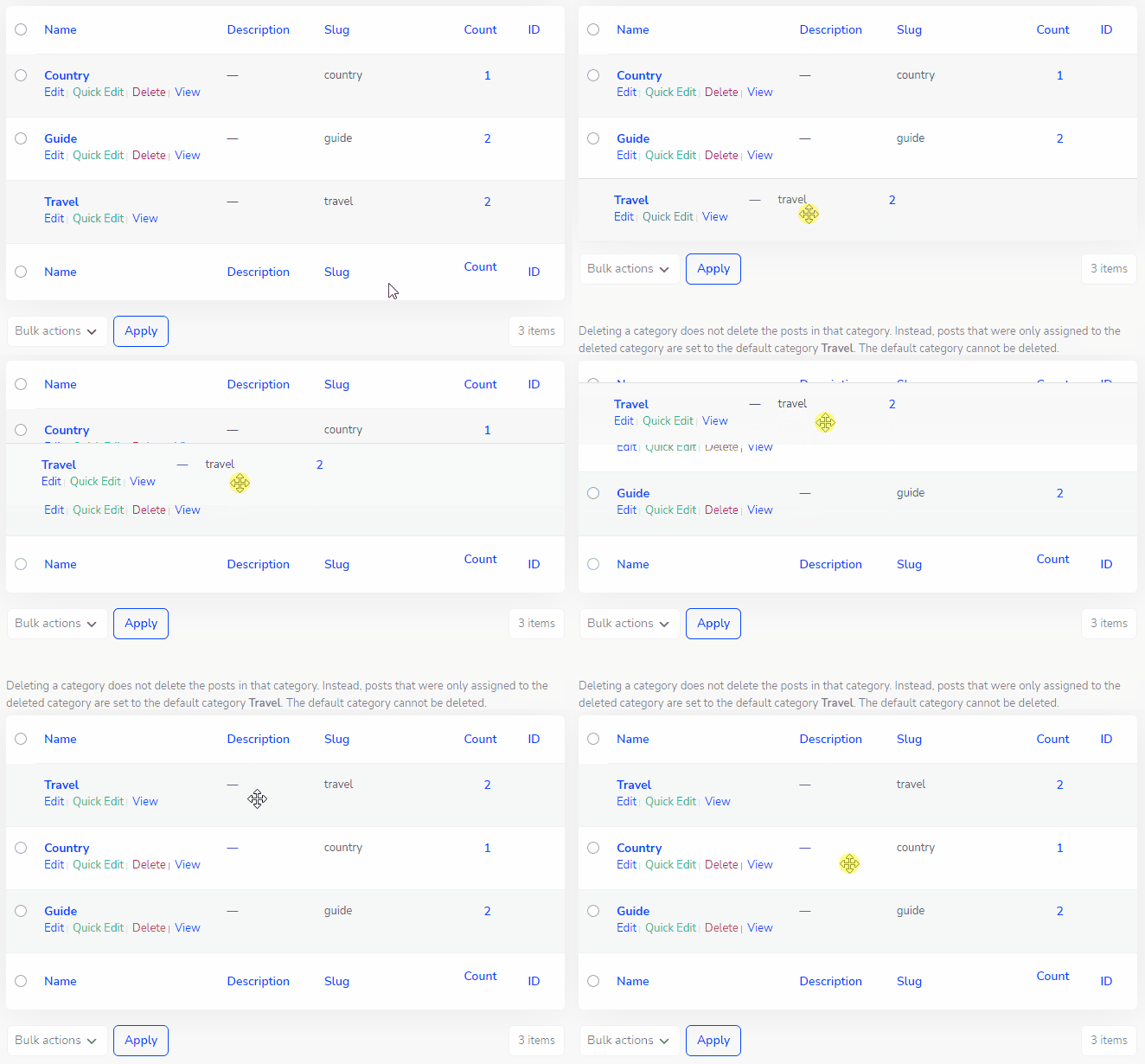
Now, go to the taxonomy section you want to reorder. You’ll see a list view option, where you can easily drag and drop to sort your desired taxonomies.
Reorder Posts FAQs
Which post types can I reorder?
Posts, pages, and any custom post type. You can also make media files sortable in list view and choose which taxonomies are sortable - all from the Post Types Order settings.
Does the custom order affect my site's frontend?
Reordering changes how entries are ordered in queries that follow menu order, which is what most themes use for pages and custom listings. Your archive templates decide what visitors ultimately see - test after reordering.
Do I need a separate plugin for this?
No - Post Types Order is one of the modules bundled in WP Adminify, replacing a standalone reorder plugin. See the Post Type Order feature overview.
Related Documentation
Didn’t find what you were looking for? Get in touch!
Updated on Aug 12, 2026
Was this helpful to you?