

WP Adminify
WordPress Admin Menu Styles customization


Table of Contents
WP Adminify plugin offers multiple options for admin menu style like Font settings, Menu width, Padding, Color settings.
Font settings
When you navigate to the styles option inside the Admin menu, you will get the first option as font settings.
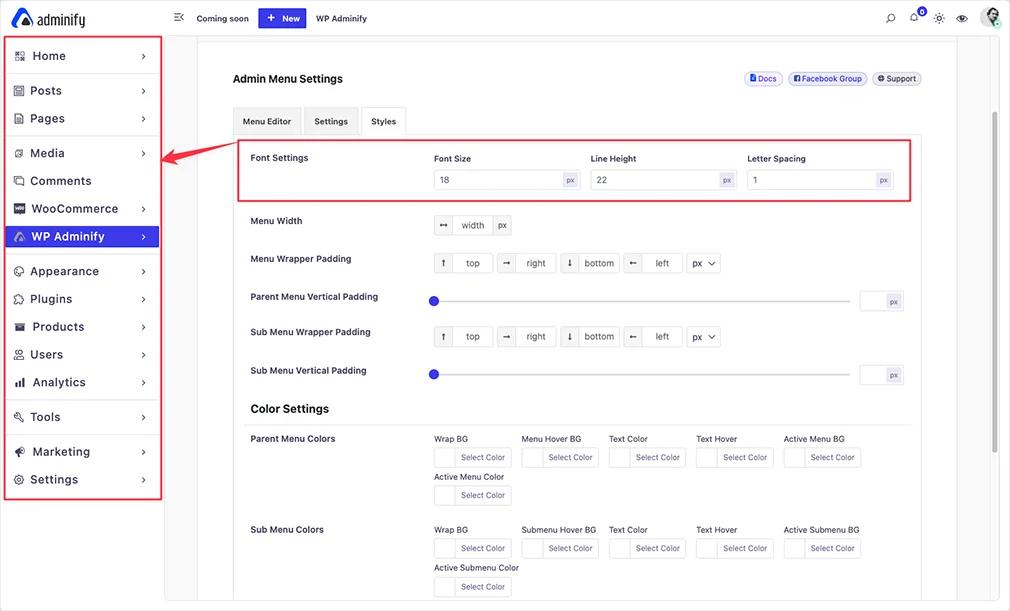
You can adjust font size, line height, and letter spacing.
Menu Width
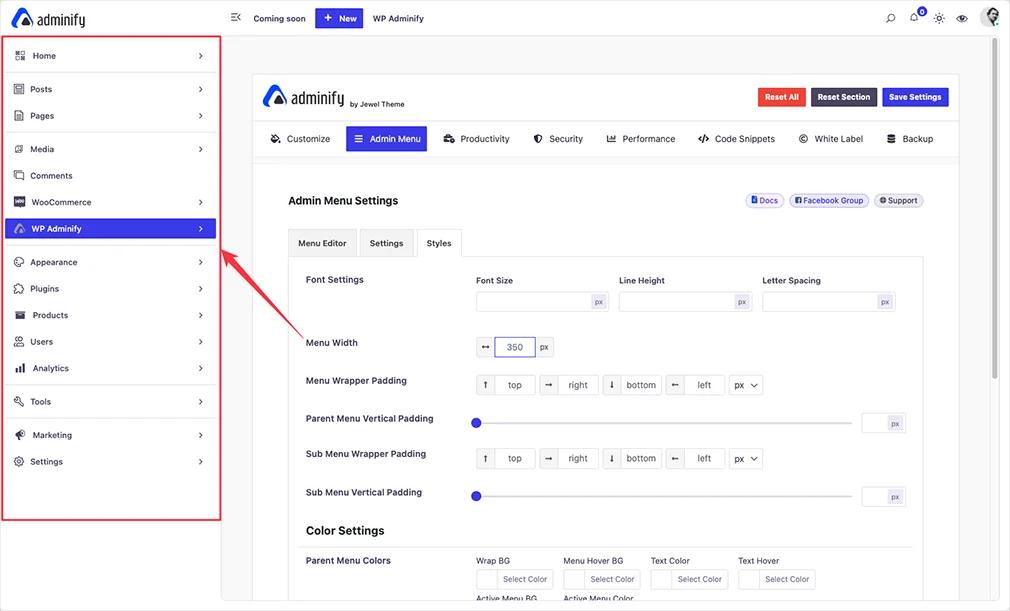
Under the font settings option, you can notice a field called "Menu Width". Just input the value in px and save the settings. The width will be applied to your admin menu width.
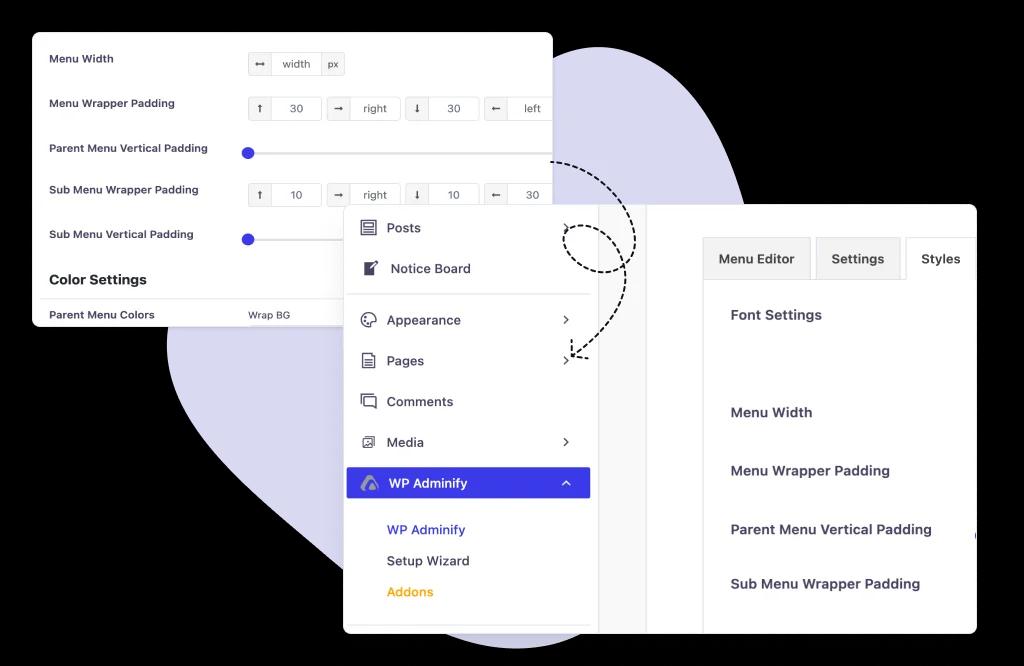
We have added some padding options to provide you with better control over the admin menu items gap. You can add main menu padding, submenu padding.
Color Settings
Color settings are the last option by the WP Adminify plugin. You can set parent menu colors, submenu colors and notification colors from this option.
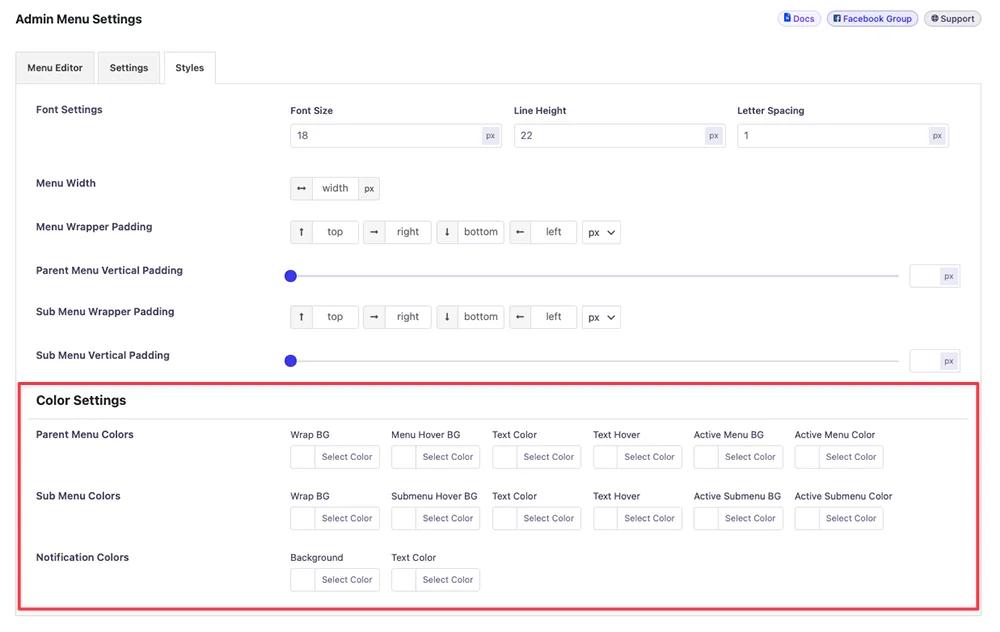
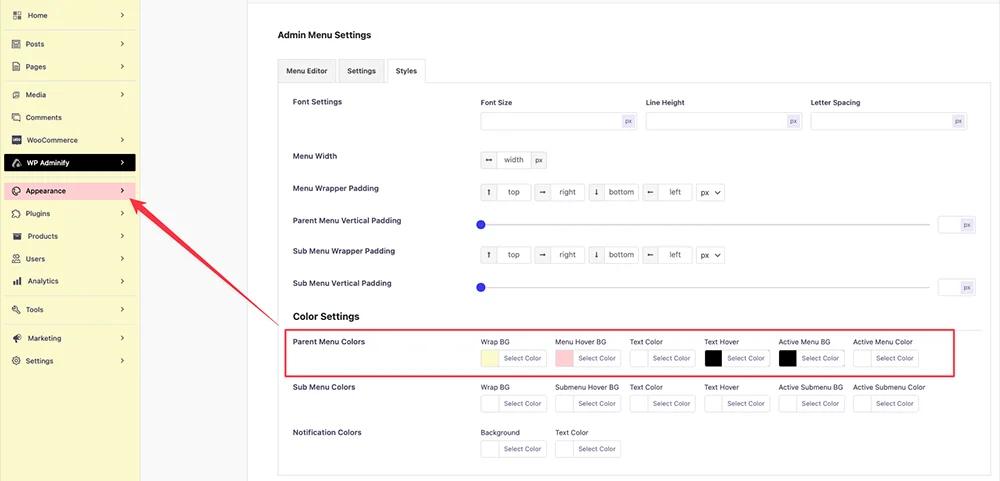
I have changed the parent menu colors in the following screenshot and you can see the result. Make sure to choose Wrap BG, Menu hover BG, Text hover, and some other colors properly.
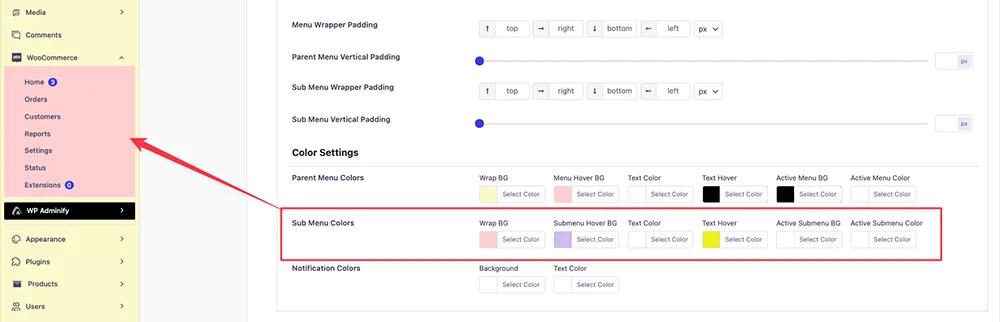
Now, here I am showing you how I have customized the submenu colors for the admin menu. Just like the primary menu colors, do the same for submenu colors.
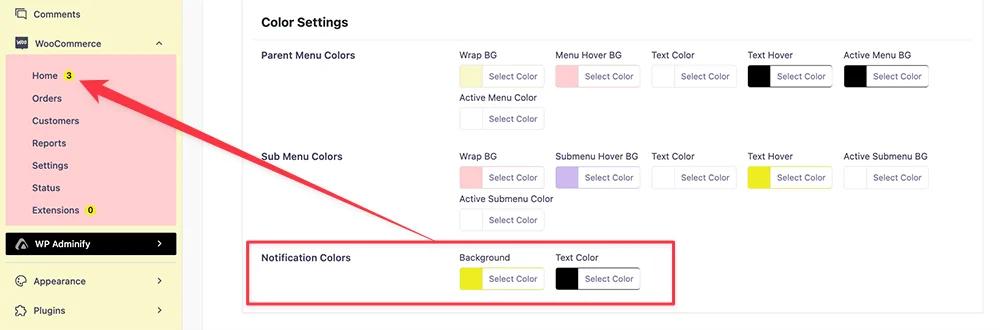
This is the last option we have on the Admin Menu editor feature by WP Adminify. It used to change the notification icon colors that are available in the WordPress admin menu. For example, in the following screenshot I have changed the notification colors and you can see it changes the colors in WooCommerce.
Didn’t find what you were looking for? Get in touch!
Updated on Jul 16, 2026
Was this helpful to you?