


WP Adminify
WordPress Admin Menu Editor Settings customization – WP Adminify


Table of Contents
WP Adminify offers both vertical and horizontal admin menus. Based on your selection you will notice changes in the following options.
The default menu is Vertical and let’s discuss the vertical menu settings -
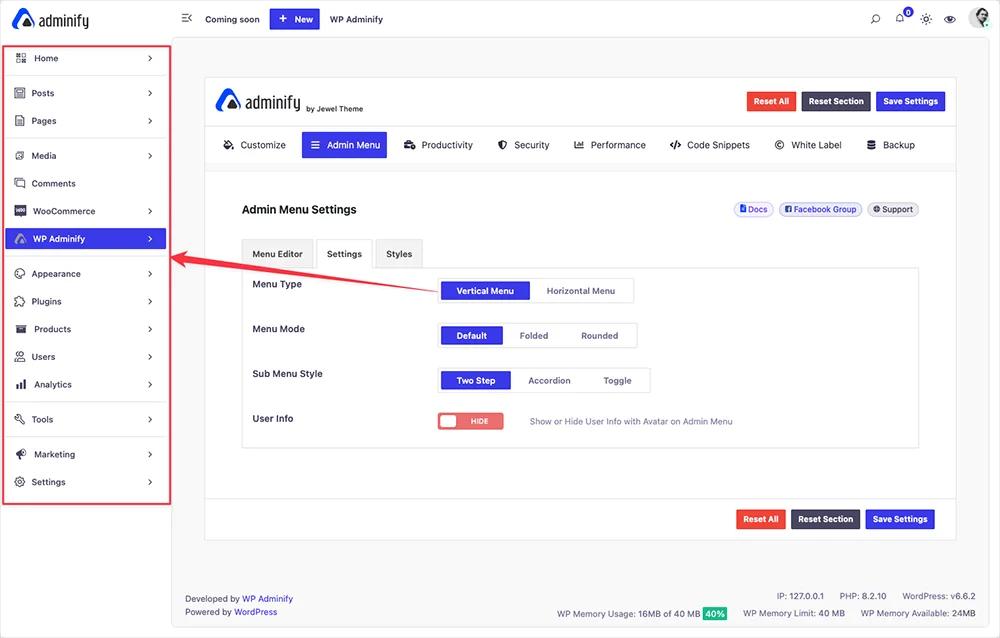
WordPress Vertical Admin Menu settings
There are a total of 3 menu modes available called Default, Folded, and Rounded. This menu mode reflects the primary menu item style.
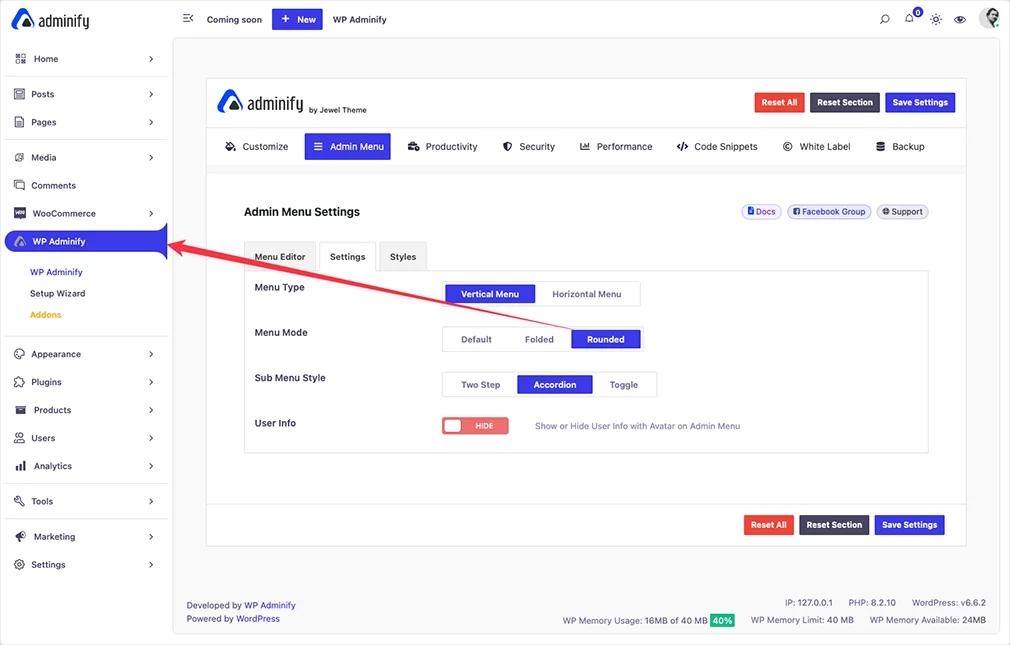
You can use folded menu mode, which looks something like the following video -
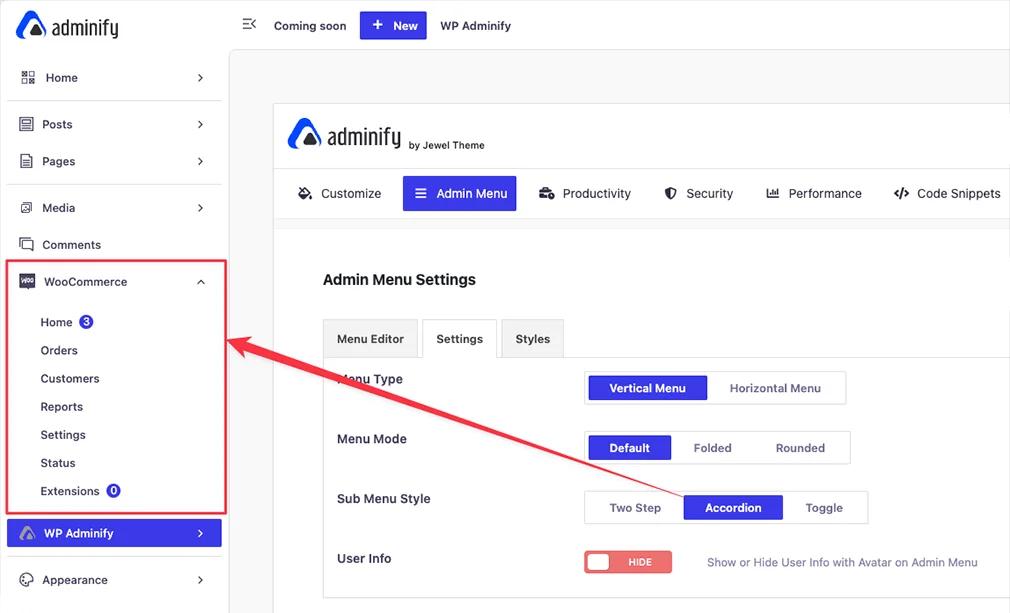
There is another option called “Sub menu style” which offers 3 different options called two step, accordion, and toggle.
On the other hand, Accordion and toggle look something like the following screenshot. When you select the accordion, it closes the other active menu items and expands the new one. But Toggle keeps all menu items open when you click on each item.
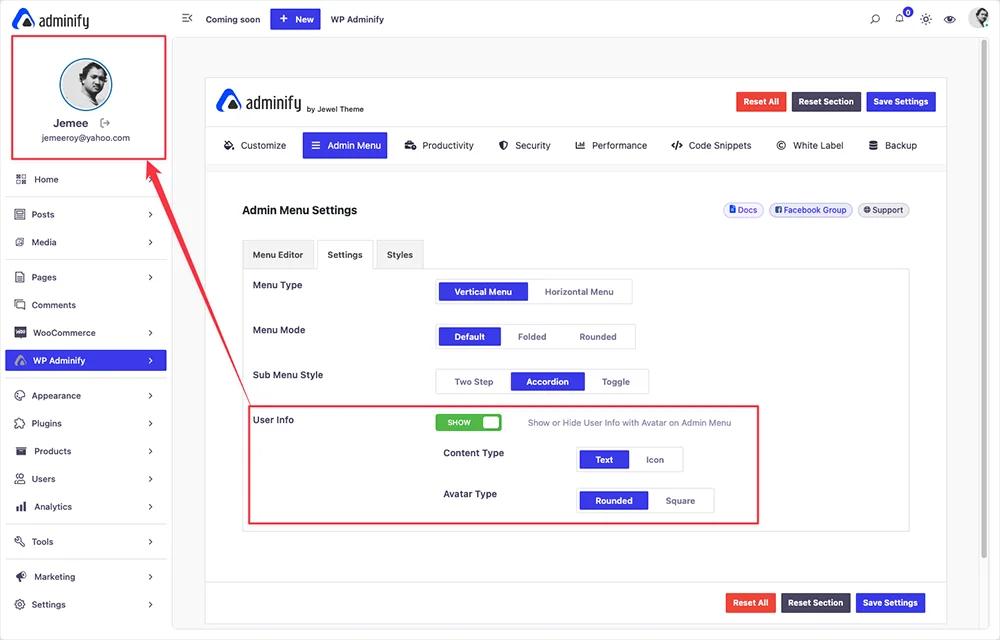
User information in the Admin Menu
The last option for vertical admin menu settings is User Info. You can showcase user avatar, email, log out icon inside the admin menu wrapper.
Horizontal Admin Menu
Horizontal admin menu offers “icon only”, “text only”, and “both” options for your admin menu items.
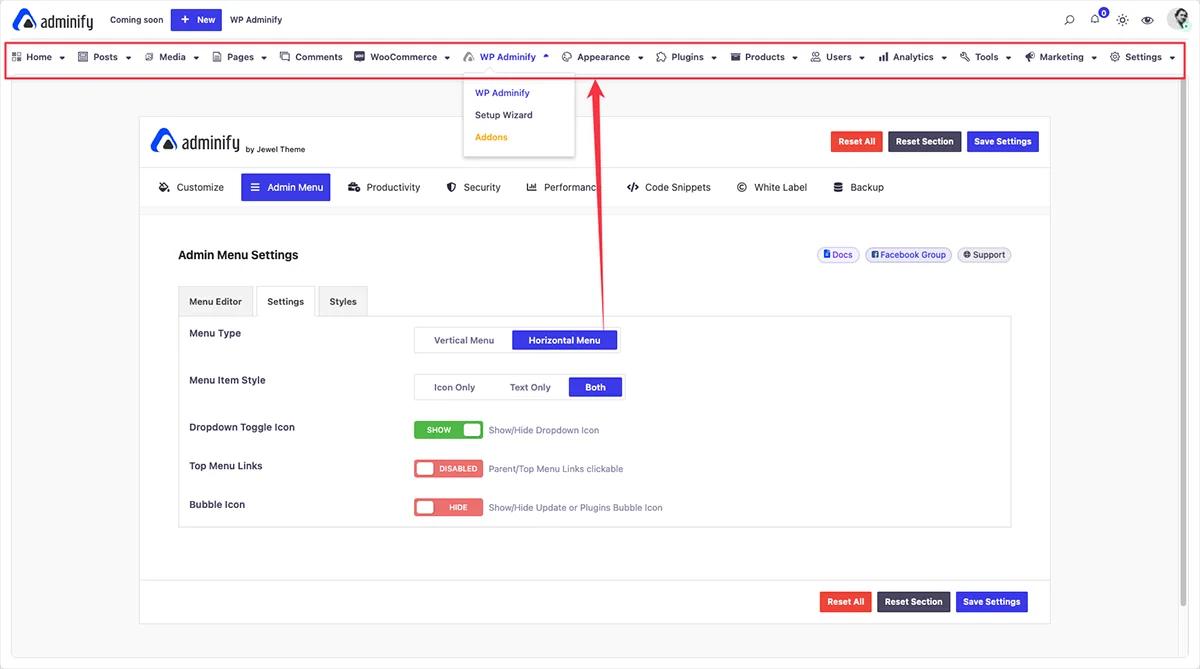
Show or hide the dropdown toggle icon.
Enable if you like to make the main parent menu clickable or not. It works for those menu item which has submenu items.
If you are a regular WordPress user, then maybe you have noticed that whenever there is a plugin update, the number appears in the plugin option as a bubble. You can hide or show this for your horizontal menu item.
Didn’t find what you were looking for? Get in touch!
Updated on Jul 16, 2026
Was this helpful to you?