


WP Adminify
How to Import/Export WP Adminify Settings?


Table of Contents
You can easily import/export WP Adminify settings to avoid repetitive setups. Here’s how to do it.
Step 1: Go to the Backup Settings
To access import/export options, go to the following path:
WP Adminify > Backup.
Step 2: How to Export WP Adminify Settings
You’ll see a few codes written in the “Export & Download” field. These are your current WP Adminify settings.
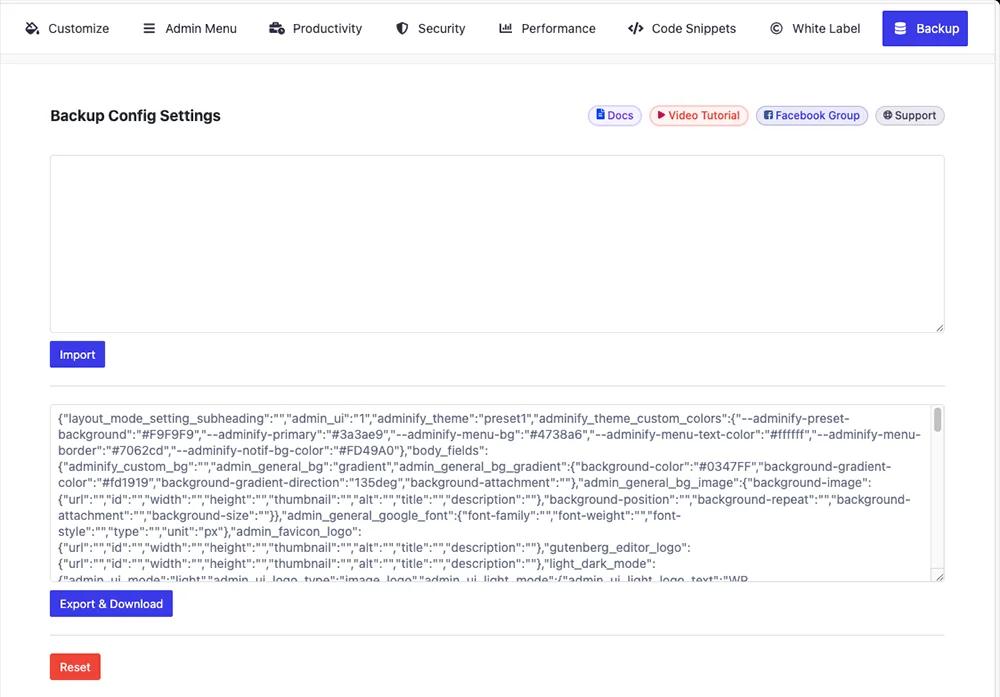
Click the “Export & Download” button, to export your current settings. A JSON file will be downloaded. You can keep the file if you want to import these settings on another website.
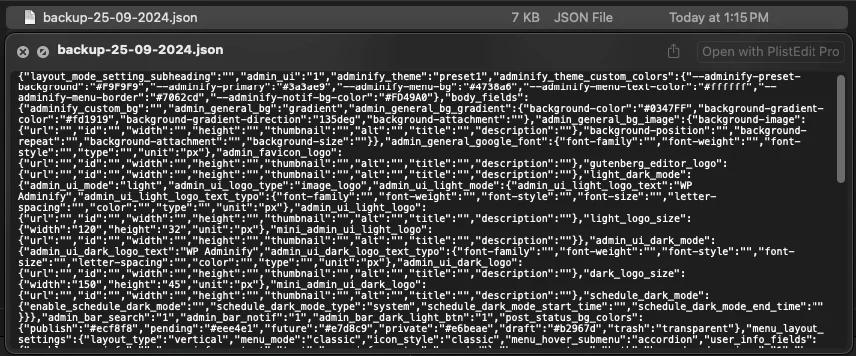
Step 3: How to Import WP Adminify Settings on Another Site
You can import your saved WP Adminify settings on a different WordPress website.
Open your saved JSON file and copy all its content.
Note: You get this file from exporting your settings mentioned in step 2.
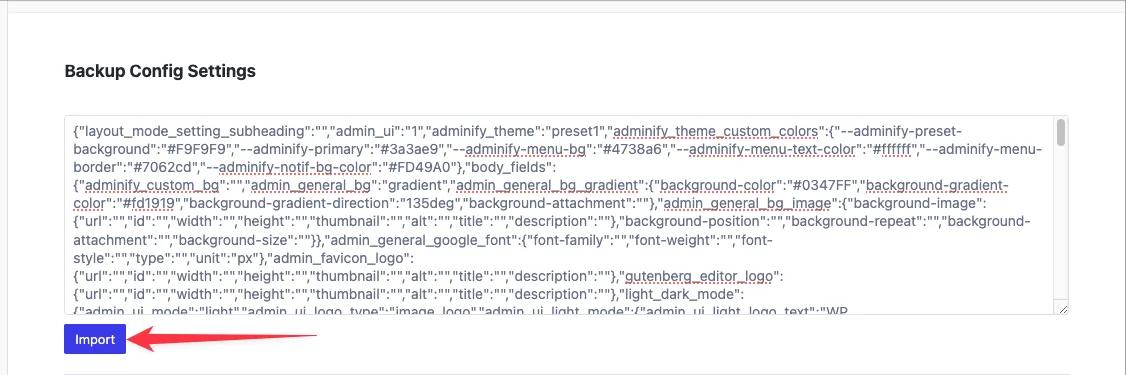
Paste the content in the Import box and click the “Import” button.
Step 4: Save the Settings
After you’re done with importing, click the “Save Settings” button to apply it.
Didn’t find what you were looking for? Get in touch!
Updated on Jul 16, 2026
Was this helpful to you?