

WP Adminify
How to Duplicate Menu and Posts in WordPress?
Want to duplicate menus or posts in WordPress? Follow these steps to enable duplicator with WP Adminify.
How to Duplicate Menu in WordPress
First, go to this path: WP Adminify > Productivity
Then, turn on the “Menu Duplicator” option. Once enabled click the “Save Settings” to apply it.
Now to duplicate your menus, go to Appearance > Menus to find all your menu items.
You’ll see an option called “Duplicate” added by WP Adminify. Click the button to duplicate your menu.
You can easily edit, modify or delete the menu as per your requirements.
WP Adminify also allows you to duplicate menu items. You’ll see the “Duplicate” option menu items as well. Click on it to duplicate your menu items.
Important Note
The menu duplicator will only work on classic themes. If you’re using block based themes, the duplicator won’t work as intended.
How to Duplicate Posts in WordPress
First, go to this path WP Adminify > Productivity
Then, turn on the “Post Duplicator” option. Once enabled click the “Save Settings” to apply it.
You’ll see following post types to choose from on the “Enable for Post Types” section:
- Posts
- Pages
- Floating Elements
- My Templates
Note: You’ll see all available post types (custom) in this section dynamically.
Now, go to the desired path (Post, page, custom post type) to duplicate your posts/pages.
In the list of posts or pages, hover over the item you want to duplicate. You’ll see a new option labeled as “Adminify Clone”. Click on it to duplicate your posts, pages or custom post types.
Note: Remember the duplicated content will be set to draft by default. If you want to make it live, open the duplicated content and click publish.
How to Duplicate Taxonomies in WordPress
First, go to this path WP Adminify > Productivity
Then, turn on the “Post Duplicator” option. Once enabled click the “Save Settings” to apply it.
You’ll see following taxonomies to choose from on the “Enable for Taxonomies” section:
- Categories
- Tags
- Link Categories
- Pattern Categories
- Custom Categories
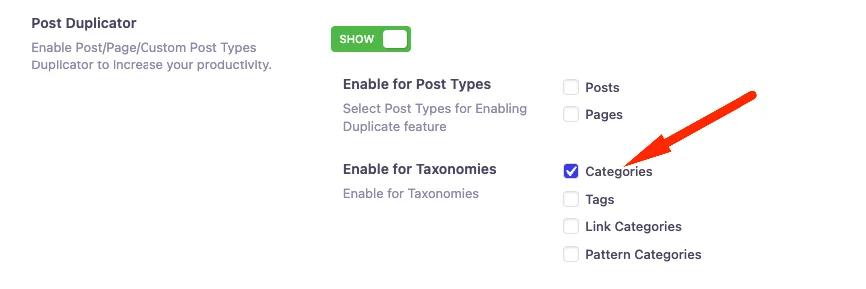
Note: You’ll see all available taxonomies (custom) in this section dynamically.
Now, go to the desired path to duplicate your taxonomies.
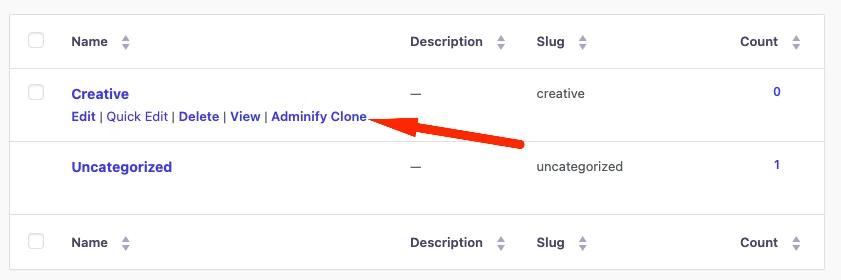
In the list of posts or pages, hover over the item you want to duplicate. You’ll see a new option labeled as “Adminify Clone”. Click on it to duplicate your posts, pages or custom post types.
Note: Remember the duplicated content will be set to draft by default. If you want to make it live, open the duplicated content and click publish.
In the taxonomy list, find the taxonomy you want to duplicate. You’ll see a new option labeled as “Adminify Clone”. Click on it to duplicate your taxonomies.
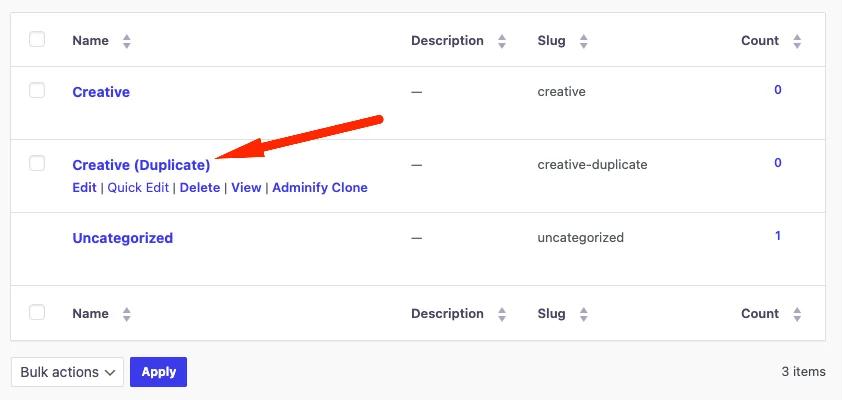
Note: The duplicated taxonomy will include the same name and details with a “Duplicate” prefix.
Didn’t find what you were looking for? Get in touch!
Updated on September 26, 2024
Was this helpful to you?